Why Does My EV Charger Lose Wifi Connection Repeatedly
Smart EV supply equipment relies on wireless signals to report charging data. When this link drops, understanding the core physical interference sources restores reliable network performance.

Most wireless dropouts stem from 2.4 GHz band congestion or thick garage walls. Shifting your router channel or adding a mesh node solves the underlying communication failure.
Looking for matching picks? See our Best Level 2 Ev Charger With Cellular Connection.
Practical Quick-Reference Table
| Scenario / Metric | Recommended Target | Why It Matters |
|---|---|---|
| Frequency Band | 2.4 GHz Only | Better wall penetration |
| Signal Strength | -65 dBm or better | Prevents packet loss |
| Router Distance | Under 50 feet | Reduces attenuation |
| Channel Width | 20 MHz fixed | Improves stability |
| Encryption Type | WPA2-AES | Standard security match |
| IP Assignment | DHCP Reservation | Prevents address drops |
Diagnosing Basic Wireless Disconnects in EV Units
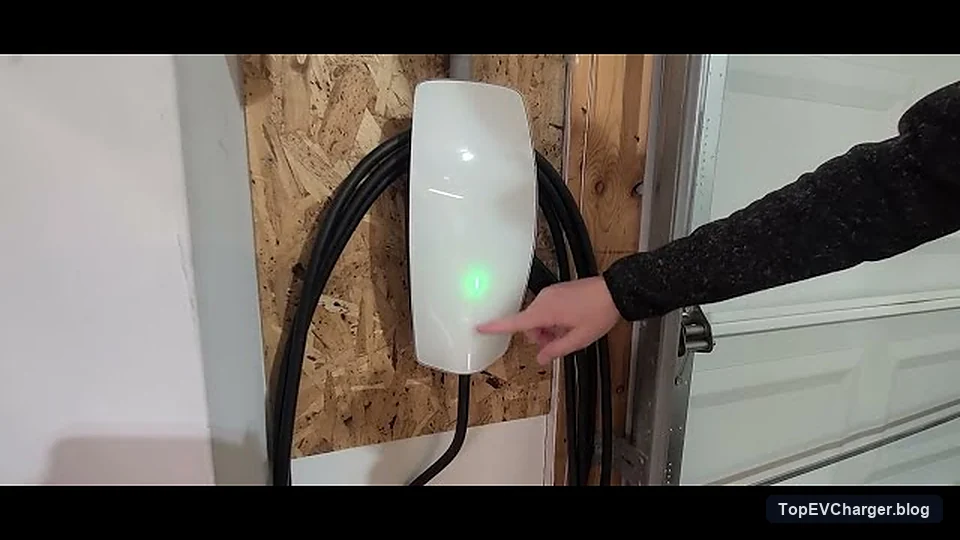
Residential charging stations like the ChargePoint Home Flex require steady signals. Spotting intermittent offline states involves checking app alerts against actual local router connectivity logs.
Many modern EVSE units drop offline while continuing to supply power to the vehicle. This separation means safety routines remain functional even when remote monitoring temporarily ceases.
Begin troubleshooting by confirming whether your router suffers general dropouts. Reviewing a wifi vs cellular ev charger comparison helps determine if network architecture is causing persistent connectivity failures.
Documenting the exact time of each disconnection helps isolate environmental triggers. Microwave usage or heavy appliance cycles often correlate with dropped smart device sessions in attached garages.
- Check router client tables for the charger MAC address.
- Observe status LED patterns on the charging enclosure.
- Test connection stability during off-peak network hours.
- Verify smartphone app version compatibility with firmware.
Interpreting LED Status Codes
Manufacturers program specific blinking sequences to indicate failed handshakes. Consult your manual to translate amber or red flashes directly into connectivity error codes.
Flashing blue often means pairing mode, while solid blue confirms active transmission. Persistent red signals hardware faults requiring a complete power cycle at the breaker.
- Turn off the dedicated breaker for sixty seconds.
- Watch the indicator sequence during startup.
Understanding Frequency Band Conflicts in Garages
Most residential charging hardware operates exclusively on older 2.4 GHz frequencies. Modern routers often combine frequency bands under a single network name, confusing the charging receiver.
When dual-band steering forces your hardware onto an incompatible frequency, connection drops occur. Choosing reliable cellular connected EV chargers eliminates local wireless network configuration headaches completely.
The 2.4 GHz spectrum offers superior range and wall penetration compared to 5 GHz. However, it suffers from severe congestion due to competing smart home appliances nearby.
Separating your network SSIDs allows you to pin the charging unit strictly to a stable frequency. This administrative adjustment eliminates automatic band switching errors entirely.
- Access your router admin dashboard via web browser.
- Create a distinct SSID for the 2.4 GHz band.
- Reconnect the charger using the segregated network name.
- Disable smart connect or band steering features.
Managing Channel Congestion
Overlapping wireless channels create packet loss for distant garage devices. Selecting non-overlapping channels like one, six, or eleven prevents interference from neighboring home networks.
Run a wireless scanner app to identify the clearest channel in your garage. Manual channel selection yields significantly better performance than automatic router defaults.
- Scan surrounding airwaves for channel utilization.
- Lock your router channel to a static value.
Video Walkthrough: Myenergi Zappi WIFI fix !!
Overcoming Distance and Building Material Barriers
Garages are notorious dead zones because of physical barriers. Exterior grade insulation, concrete block walls, and foil vapor barriers severely attenuate incoming wireless signals.
Units like the Grizzl-E Classic or similar smart variants struggle when distance exceeds fifty feet. Heavy metal electrical panels mounted nearby further degrade local signal quality.
Measuring your received signal strength indicator helps determine if attenuation causes your drops. A reading below minus seventy dBm guarantees frequent disconnects and sluggish application syncs.
Relocating your primary router or adding intermediate network hardware bridges this physical gap. Line-of-sight improvements dramatically enhance long-term connection reliability in detached structures.
- Measure dBm signal levels near the charging unit.
- Clear metallic obstructions away from the enclosure.
- Evaluate distance limitations specified by the manufacturer.
- Consider line-of-sight adjustments for optimal reception.
Evaluating Physical Obstructions
Stucco walls containing wire mesh act as Faraday cages blocking radio waves. Identifying these structural hurdles explains why indoor devices maintain stable links while garage hardware fails.
External mounting brackets can sometimes position the unit away from dense studs. Small shifts in physical placement bypass localized interference zones inside your garage.
- Inspect wall composition between router and garage.
- Avoid placing chargers directly on concrete walls.
Analyzing Router Configuration and Channel Settings
Advanced router settings can inadvertently block smart charging hardware from maintaining steady sessions. Features like firewall restrictions or aggressive power-saving modes frequently drop idle client connections.
Assigning a static IP address through DHCP reservation prevents lease expiration dropouts. Dynamic address changes often lock out peripheral equipment unable to renegotiate handshakes quickly.
Check your router's security protocols to ensure compatibility with your specific charging brand. Older hardware often fails when forced to handshake with modern WPA three encryption.
Adjusting RTS threshold values or packet fragmentation limits can also stabilize weak links. Fine-tuning these advanced parameters optimizes data transmission across difficult architectural spans.
- Set up a DHCP reservation for the charger MAC.
- Ensure WPA2-AES security mode is active.
- Disable aggressive Wi-Fi power saving features.
- Verify firewall rules do not block local ports.
Checking Lease Times and Subnets
Short DHCP lease intervals force frequent renewal requests that occasionally fail. Extending lease durations to a week minimizes background network traffic interruptions significantly.
Verify that your charger resides on the primary home subnet without guest isolation. Alternatively, installing a non-wifi level 2 charger removes network dependency altogether for maximum reliability.
- Extend router DHCP lease duration settings.
- Confirm the charger is on the main subnet.
Assessing Interference from Household Electronics
Garage environments house numerous appliances generating electromagnetic interference. Microwaves, garage door openers, and fluorescent lighting ballasts disrupt local wireless communications profoundly.
Operating heavy tools creates electrical noise that bleeds into wireless spectrums. Using our ev charger sizing calculator ensures your electrical capacity safely handles transient interference and continuous loads.
Separating power cables from low-voltage communication lines prevents induced signal distortion. Proper wiring practices safeguard smart hardware from localized electrical noise contamination.
Identifying specific appliance schedules helps correlate dropouts with environmental activity. Moving offending electronics away from the charging station restores clean radio frequency propagation.
- Keep garage door motors away from the EVSE.
- Replace failing fluorescent ballasts with LED fixtures.
- Route charging communication lines away from heavy conduits.
- Monitor disconnection logs against appliance run times.
Mitigating Electromagnetic Noise
Installing ferrite chokes on nearby power cords suppresses high-frequency electrical noise. These affordable magnetic cylinders absorb stray radiation before it reaches sensitive internal antennas.
Ensuring proper earth grounding on all electrical circuits prevents stray currents from generating interference fields that disrupt delicate wireless receiver components.
- Add ferrite beads to nearby power cords.
- Verify earth grounding integrity at the panel.
Video Walkthrough: Reset Hypervolt
Implementing Network Hardware Upgrades Effectively
When basic tweaks fail, upgrading your home network infrastructure solves persistent garage coverage gaps. Dedicated wireless access points mounted near the garage door extend reliable coverage.
Mesh network nodes placed in an intermediate room bridge distant signals effectively. Choosing tri-band mesh systems ensures dedicated backhaul channels without sacrificing client device bandwidth.
Avoid low-quality range extenders that cut available throughput in half by repeating signals. True access points wired via ethernet backhaul provide flawless connectivity for smart chargers.
Deploying outdoor-rated access points outside the home exterior minimizes structural attenuation entirely. This direct path guarantees robust signal margins for all connected vehicle accessories.
- Deploy a dedicated mesh node in the garage.
- Use wired ethernet backhaul for access points.
- Avoid cheap wireless repeaters that drop speeds.
- Position hardware with minimal walls in between.
Choosing Between Mesh and Extenders
Mesh systems manage seamless roaming and band steering much better than simple extenders. Investing in a multi-node kit resolves connectivity issues across your entire property footprint.
Configure the garage node to prioritize the fixed charging station as a primary client. This hardware prioritization prevents random dropouts during peak household internet usage.
- Compare node placement options inside the home.
- Prioritize wired backhaul where structurally possible.
Resetting and Re-pairing Your Charging Hardware
Software glitches inside the EVSE operating system sometimes require a factory reset. Clearing corrupted network caches restores normal communication protocols with cloud servers.
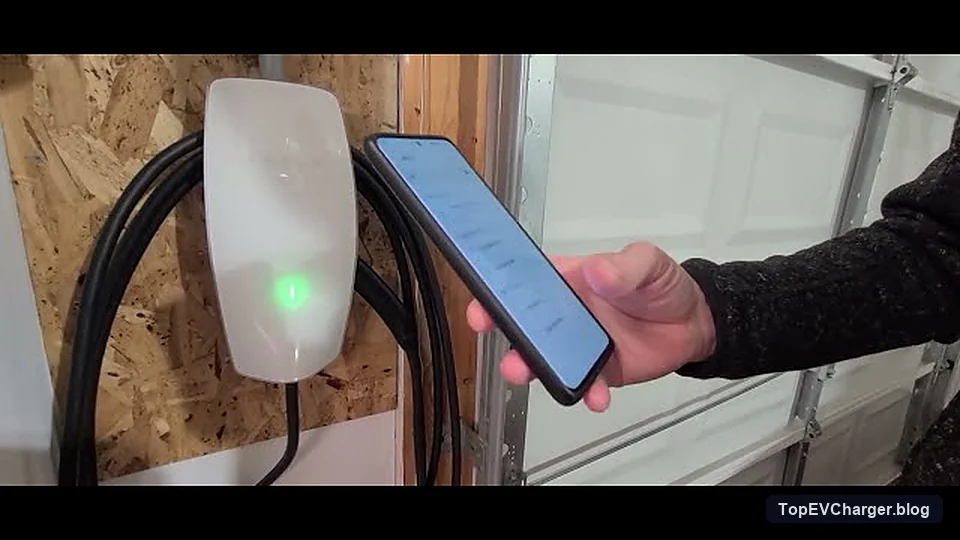
Follow manufacturer guidelines carefully to put your unit back into pairing mode. Delete old connection profiles from your mobile application before initiating a fresh setup routine.
Updating your smartphone application ensures compatibility with recent cloud protocol revisions. Outdated mobile software frequently misinterprets connection states and reports false offline errors.
Testing the newly paired connection over several days confirms whether the reset resolved the issue. Persistent drops after a full reset point toward deeper hardware or signal problems.
- Perform a factory reset via the unit menu.
- Delete previous device profiles from the app.
- Re-enter network credentials during setup.
- Test stability over a forty-eight hour window.
Clearing App Cache and Data
Corrupted app data on your mobile device can display incorrect offline statuses. Clearing local application cache forces a fresh sync with cloud server databases.
Log out completely and sign back into your user profile to re-establish secure tokens. This administrative refresh clears authentication loops causing continuous monitoring failures.
- Clear mobile app cache in device settings.
- Log out and re-authenticate your user profile.
Verifying Firmware Updates and System Logs
Outdated internal firmware often contains bugs that cause intermittent wireless card crashes. Checking for available system updates ensures your charging unit runs the most stable software.
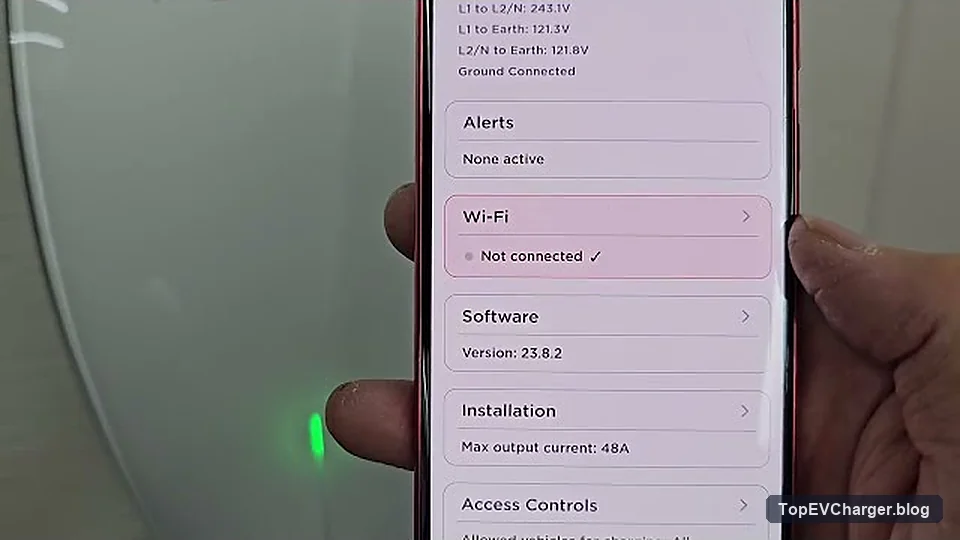
Some chargers require manual firmware updates via a direct Bluetooth connection if Wi-Fi fails. Completing this local update patches known networking vulnerabilities and improves stability.
Reviewing system logs inside advanced router menus pinpoints exact disconnection timestamps. These detailed logs reveal whether drops stem from authentication failures or physical link losses.
Reaching out to manufacturer technical support becomes necessary when logs show internal crashes. Provide support agents with your specific error codes for expedited diagnostic assistance.
- Check for pending firmware updates in the app.
- Use local Bluetooth links if Wi-Fi is unstable.
- Export router system logs for detailed analysis.
- Contact manufacturer support with specific error logs.
Reading Router System Logs
System logs display handshake rejections and DHCP lease expiration events clearly. Analyzing these entries helps isolate whether the issue originates locally or at the router.
Look for repeated authentication timeout errors indicating weak signal strength or security mismatches. Addressing these exact log entries resolves chronic dropouts permanently.
- Filter logs by the charger MAC address.
- Look for repeated authentication timeout flags.
Frequently Asked Questions
Why does my EV charger disconnect when my vehicle is plugged in?
High current draw can induce minor electrical noise affecting nearby wireless antennas. Shielding your communication cables or repositioning your router resolves this electromagnetic interference.
Does losing Wi-Fi stop my EV charger from supplying power?
No, core charging schedules and safety protocols operate independently of cloud connectivity. Your vehicle will continue charging normally even when remote app monitoring fails.
Can I connect my smart EV charger to a 5 GHz Wi-Fi network?
Most residential charging stations only support 2.4 GHz frequencies due to better range. Trying to force a 5 GHz connection causes persistent pairing failures and dropouts.
How can I test my garage Wi-Fi signal strength accurately?
Use a smartphone Wi-Fi analyzer app standing directly next to your charger enclosure. Aim for a signal reading of minus sixty-five dBm or better for stable operation.
Will a cheap Wi-Fi range extender fix my garage connection issues?
Cheap extenders often halve throughput and drop packets under heavy network loads. Installing a dedicated mesh network node or access point provides vastly superior reliability.